YouTube Video

Showing posts with label CGDI Prog BMW. Show all posts

Sunday, August 19, 2018

How to active CGDI BMW 2.2.2 Automatically?

CGDI BMW V2.2.2 update Modify software auto activation display, increase user interaction.

1. Click the orange icon shown as blow.

Also, from the above picture, you can see CGDI BMW V2.2.2 add more comparing the older version:
1) BMW F series coding, restore coding and backup coding.
2). Add BMW EGS function.
3). Add read/write BMW CAS ISN (4 bytes) feature.
4). Modify software auto activation display, increase user interaction.
5. DEM wiring diagram optimization provides the full-screen display.
6. BMW OBD key matching and FEM/BDC compatible small screen display.
7. Modify CAS4 key whether display error.
8. Other bugs fix. 

2. Click on "Update authorization".


3. Authorize successfully.


Monday, August 13, 2018

Replace BMW CAS3 D80 Engine Computer by CGDI BMW

I will share how to use CGDI BMW to replace CAS3 D80 Engine computer step by step.

MSV80 engine computer style shown as below:


Stitching of it:


1.  Click on the BMW ISN

2.  MSV80 Writing diagram

3.  Click to read DME ISN

4.  Make sure the battery has enough power and not disconnected.

5.  Need about 5min, wait

6.  Read DME ISN successfully

7.  Read CAS ISN

8.  CAS ISN read successfully

9.  Copy the DME ISN to the position of CAS ISN and write ie.

10.Please insert the key and comfirm the ignition switch is turned on

11.Written CAS ISN success

 original post from eobdtool.co.uk:

Monday, August 6, 2018

CG-100 and CGDI BMW Replace BMW N20 Engine Computer

In this blog, you will know how to replace BMW CAS3 N20 engine computer by CG100 and CGDI BMW.

Step1: use CG-100 to read engine ECU data
Click to enter “ECU”

Click on the engine mode option to enter the current vehicle

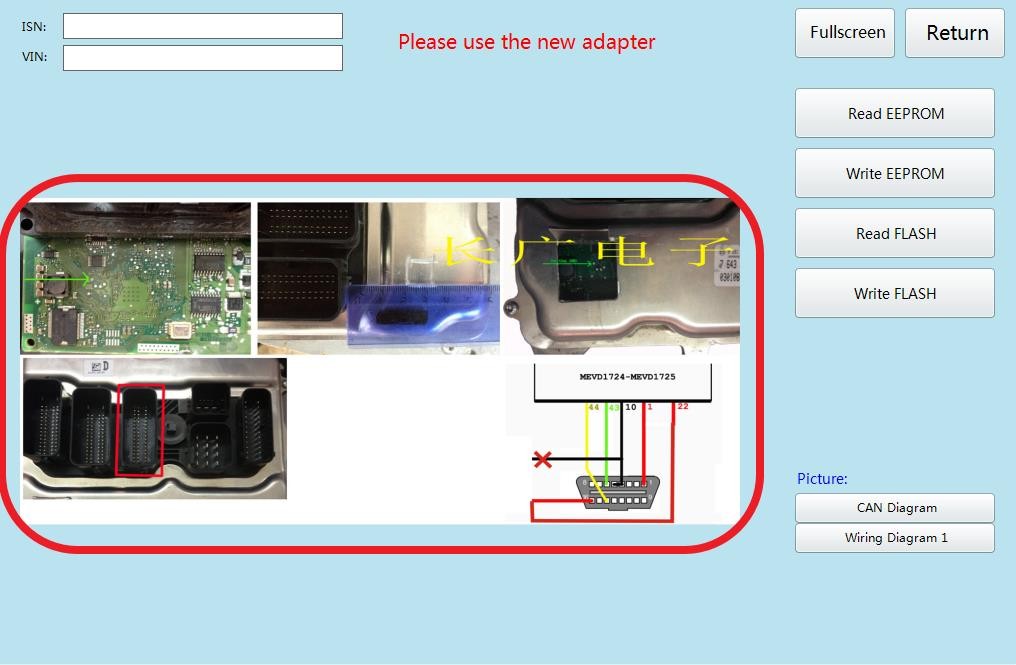
According to the software physical wiring diagram wiring

Writing engine module

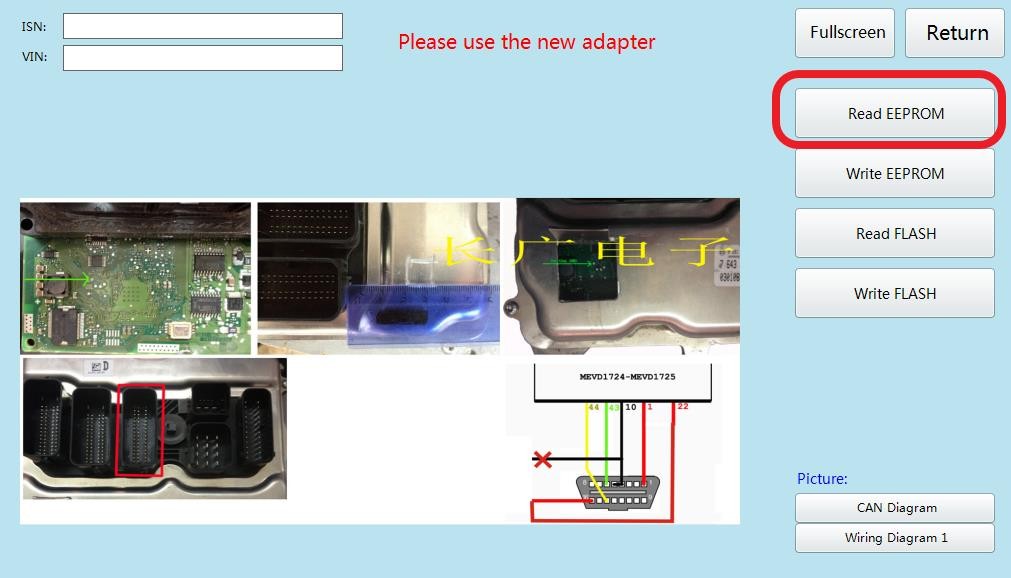
Click  ‘Read EEPROM’

Read successfully and save the data

Show ISN and VIN


Step 2: Use CGDI BMW to Connect CGDI BMW with engine ECU via OBD, click to enter BMW ISN

Click “ Read CAS ISN “

CAS ISN read successfully

Input ISN Which was read by CG-100 just now

Write successfully, replace engine computer was completed


Monday, July 9, 2018

CGDI Add EGS ISN for Free: How to Clear and Synchronize EGS ISN

Good News! CGDI now updated to add EGS ISN function for free if you have CGDI MB, CGDI BMW, CG100 Full or CG-Pro.
This post will share a guide about using CGDI BMW to Clear and Synchronize EGS ISN
Remove EGS computer and connect OBD according to software wiring diagram


After the connection is correct, open the software and click on "EGS ISN" 


Automatically connect to view relevant information


Click the“Clear ISN”, Maintain enough voltage

1.  Confirm the VIN
2.  Support modification


Programming module


EGS ISN Cleared 


After the successful completion, the connection will be terminated and the car will be automatically synchronized

Last but not least, how to get authorization of EGS ISN for CGDI for free?
Send serial number of one of following items, we can add the authorization for free

Contact Information:
Whatsapp: +86-15972933706
Email: Sales@EOBDtool.co.uk
Skype: Obdtool.co.uk
Facebook:www.facebook.com/eobdtool.co.uk.susan/


Friday, May 25, 2018

CDGI BMW and CG100 Program FEM/BDC with or without key

Since last October, all CGDI Prog BMW come with free BMW FEM/BDC function. This post will share a full guide about how to do BMW FEM/BDC key match with and without a key with the help of CG100. Here, CG100 use to read out the FEM 95128 IC data and save it.
This post will be in two parts: copy key with key and copy key without key.

Open the car door, connect the vehicle and CGDI BMW via OBD, the vehicle maintains voltage is above 12v , do not turn off the computer screen during operation.
Select "FEM/BDC key match" and click enter

Connect successfully, maintain enough voltage, click "yes"

Need to disassemble the module, read EEPROM data, FEM is 95128

FEM module installation location

Use CG100 to read out 95128 IC data and save the data

Remove the 95128 chip and clip it to the ATMEGA adapter
Open the CG100 to read the data and save it

Use CGDI Prog BMW to load the data

Load successfully, save the new data generated by the system

Write back new data with CG100, weld back to module, and click next

Waiting for programming, after finish it, write back 95128 original data, put FEM into the car again, and click next

Then, use CG-100 to write back 95128 original data
When finished, click "next"

Set code successfully, customers can do any operation


The following guide will set into two parts: copy with key and copy without key
1.    Copy with key
choose the unused key, and click "generate the dealer key"

Choose read working key, click Next

Read successfully and display information

After matching the key, a note will show out new key matched successfully


2.    Copy key without key
Use CG 100 to read the engine data
Choose “ECU

Click on the engine model option to enter the current vehicle

According to the software physical wiring diagram wiring

 Physical connection


Click read EEPROM

Read successfully and save the data

Show ISN and VIN

Return to CGDI BMW, select unused key bits, and click "generate dealer keys"”

Click on the next item that you select and click next (Manually input known ISN)

Check the information and click ok

Place new key

New key programming success